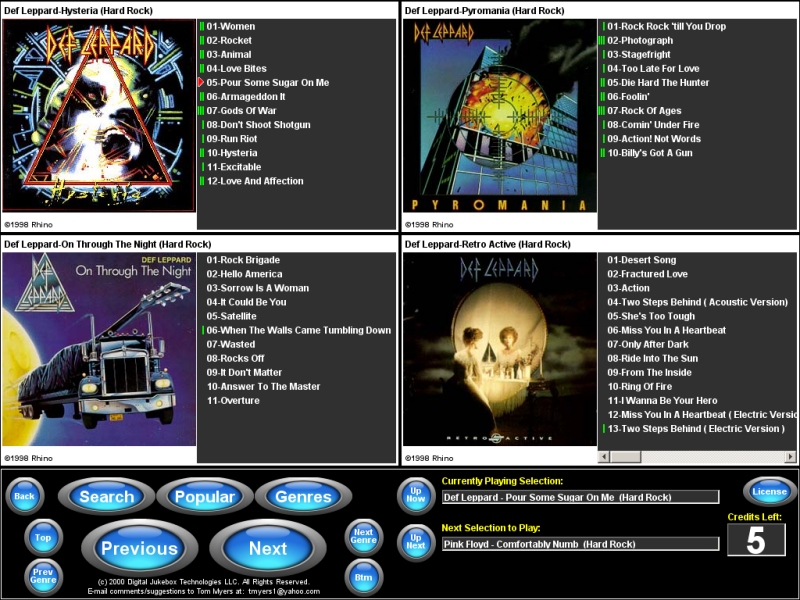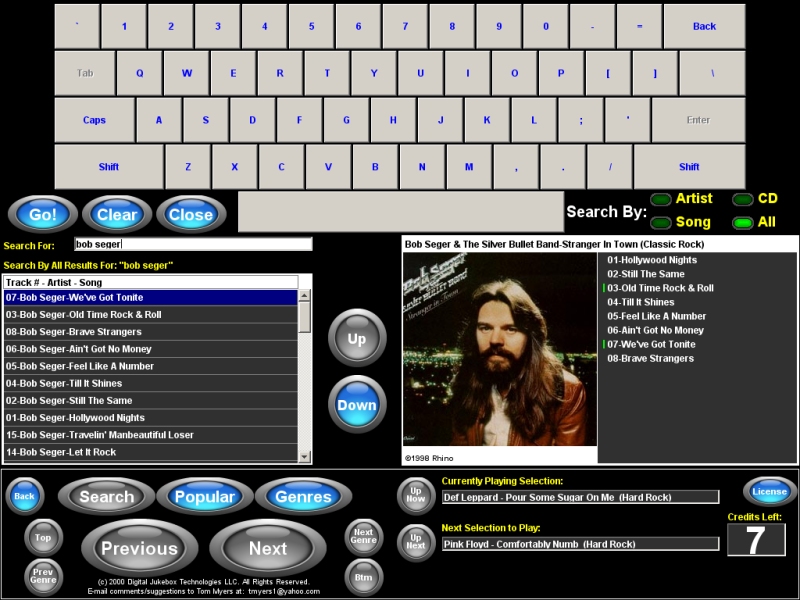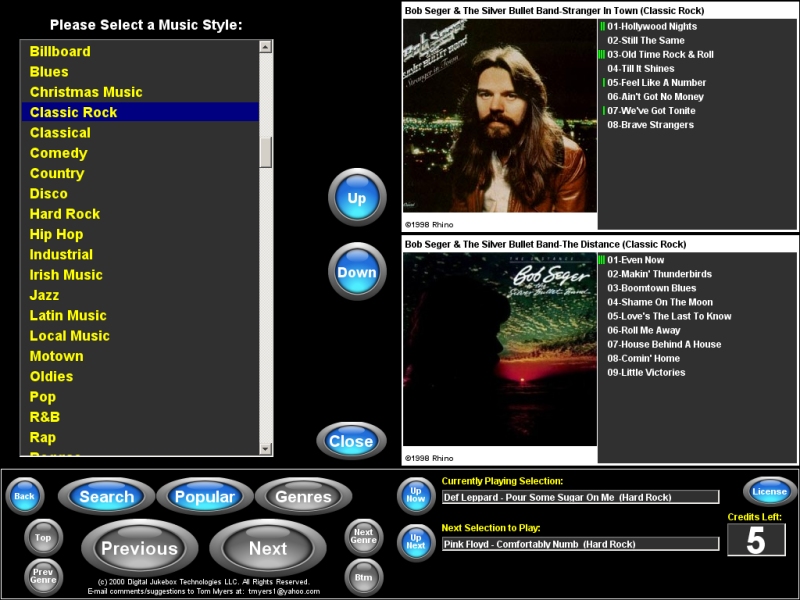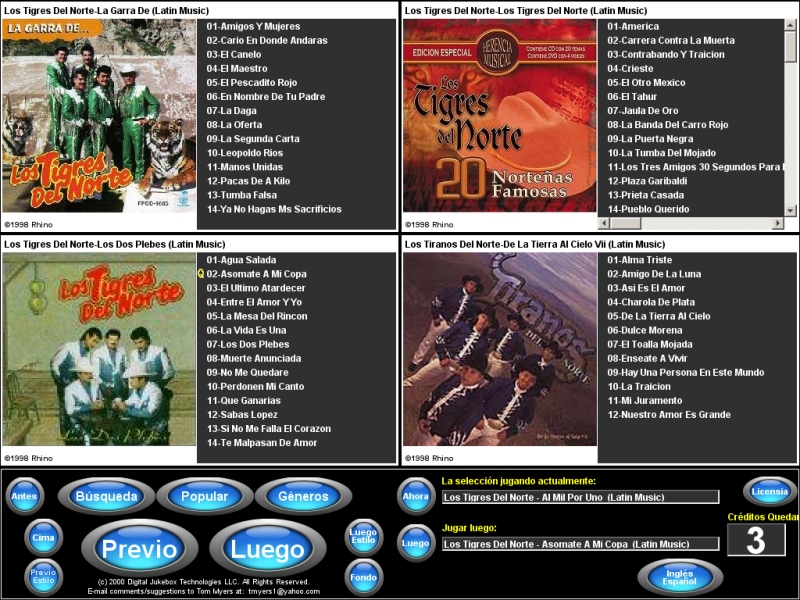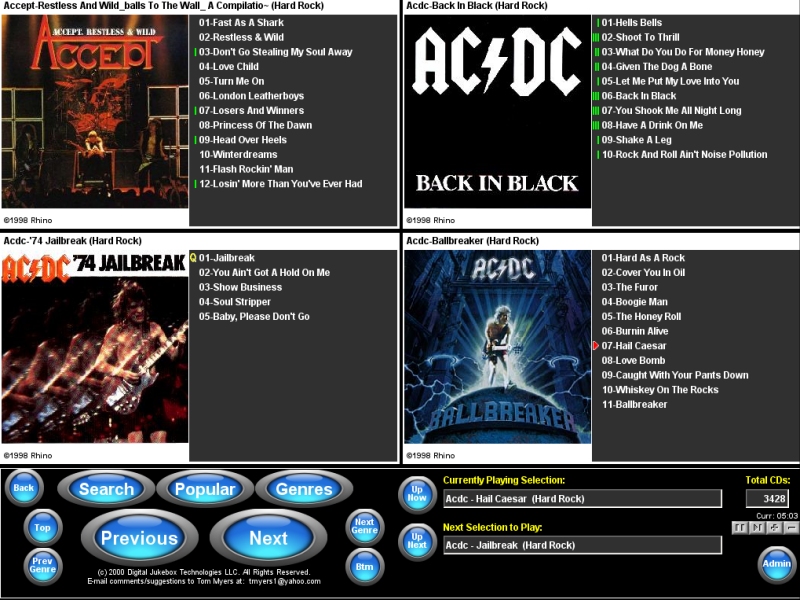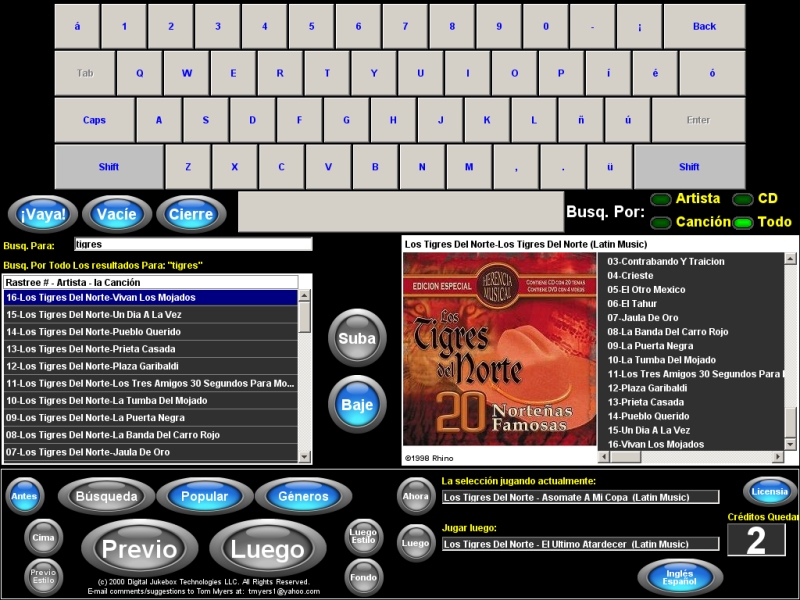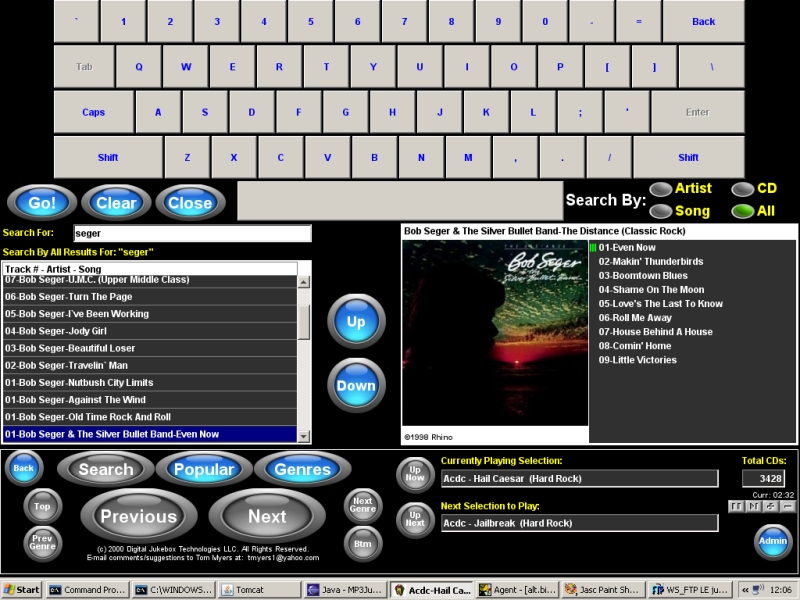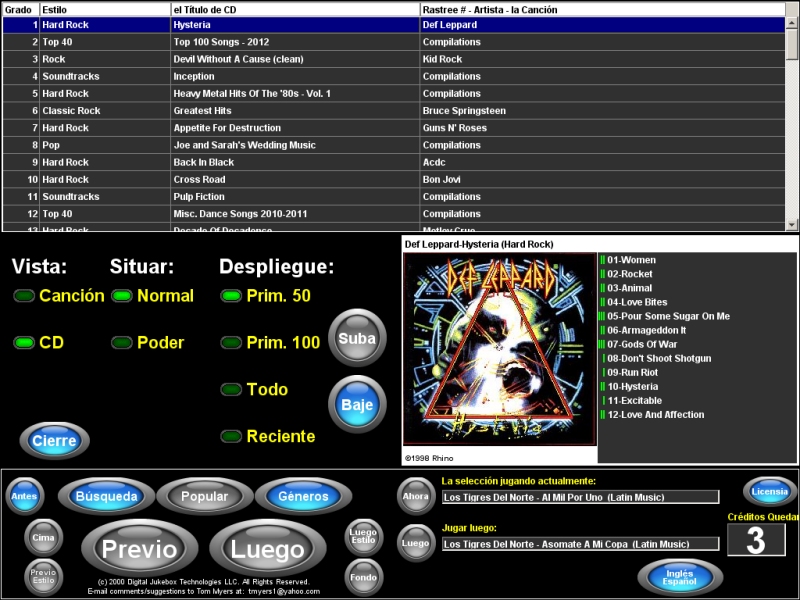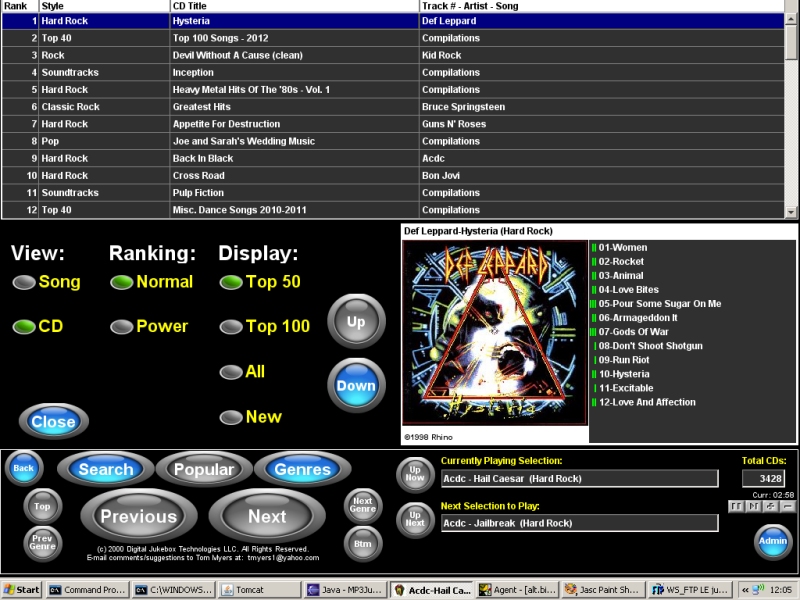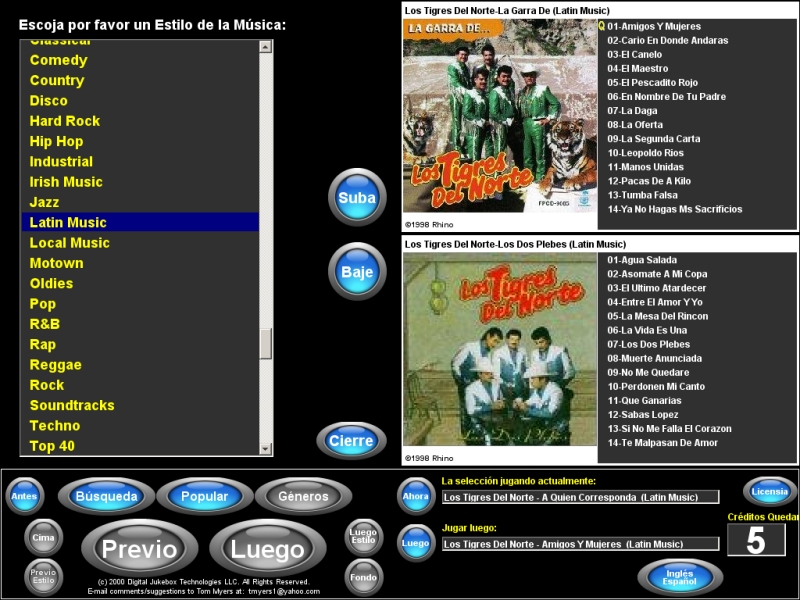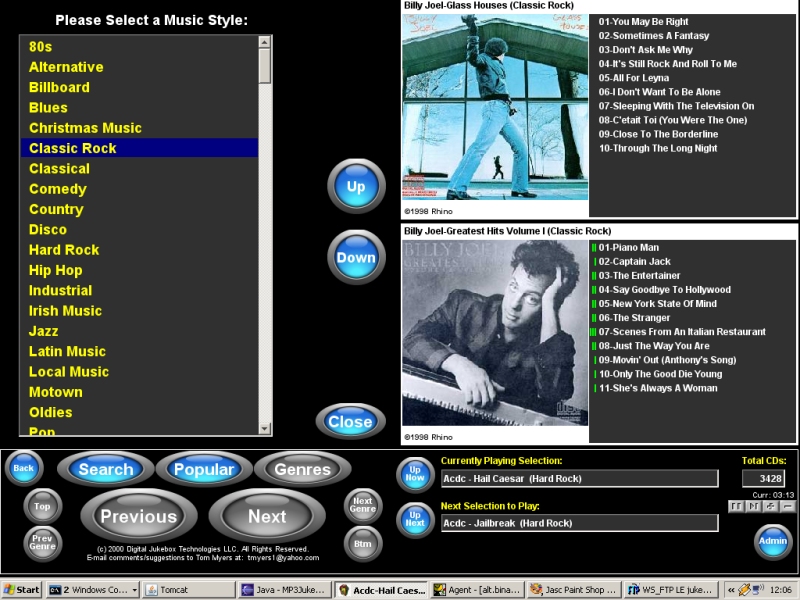
Unlike a CD jukebox, here you can jump directly from the top to bottom or from one style of music to the next... You can even jump to the page that has the currently playing song or the song that is to be played next... You pick songs by either entering its number (the CD number and then the track number) using the numbered keys, or by selecting the song and pressing enter, or simply double- clicking on it... You can play a whole CD just by double-clicking on the cover art...
The reason why you see an on-screen keyboard is that JukeANator can be used without a keyboard and mouse using just a touch-screen. This feature is necessary for the commercial version that is housed in a custom cabinet in a bar or pool hall, and comes in very handy at a party in "kiosk" mode where you want guests to interact with the jukebox, but don't want them to access the rest of your computer.
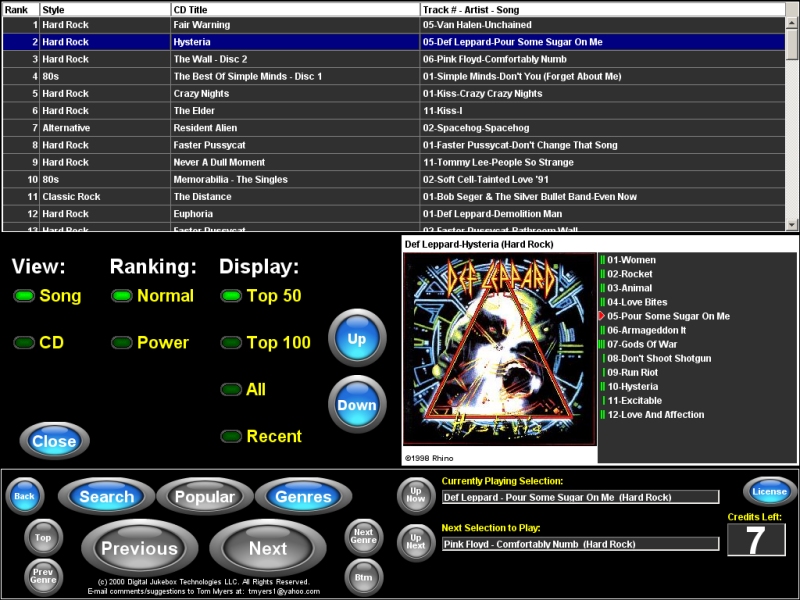
A unique feature of JukeANator is the "recent" display. If the "view" is set to "CD", then you will actually be looking at the newest CDs that have been added to the jukebox. You will see a visual cue to this because new CDs will have a red border. This comes in handy if you want to see what is new but don't want to have to peruse everything in order to find out. If the "view" is set to song, then you will see a listing of all the most recently played songs. This comes in handy when you hear a song that you like (that maybe someone else played or was played at random), but didn't know which CD the song was from or what the song name was.
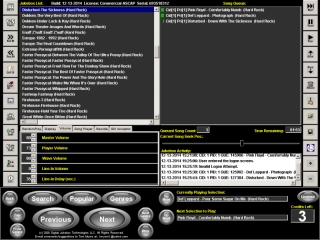
In addition, the configuration tabs for the jukebox are on the Admin screen. You can adjust the random play features, such as how many random songs to have in the queue at all times, whether or not to play songs randomly from a particular style of music or whether or not to play entire CDs randomly.
You can also decide whether or not to allow songs with explicit lyrics to be played, whether or not to operate the jukebox in "kiosk" mode, whether or not to use a screen saver, whether or not to use confirmation dialogs.
You can adjust the volume of the song player, decide which song player to use, either VLC Media Player, Winamp, Windows Media Player, Quicktime Player or native Java (with Java Media Framework). This allows you to play protected song formats as WMA and iTunes AAC.
Lastly, there are buttons for modifying the contents of the jukebox library itself. You can rescan your hard drive for new songs, reset the random play and user-selected song usage statistics, edit the metadata for a CD (such as publisher, copyright info and whether or not the CD contains explicit lyrics). You can also view screens to show you any duplicate songs that are in the jukebox, as well as screens to show you the least popular songs and CDs. You can choose to either delete CD contents or ignore them. For example, if you are a commercial customer, you may wish to ignore Christmas Music related CDs when it isn't the holiday season.
The admin screen is easily accessible from the Main screen when in non-commercial mode (by clicking on the "Admin" button), otherwise when in a bar/pool hall/etc., this screen is password protected.